What is IBO Player?
IBO Player is a versatile IPTV media player application available on nearly every platform and operating system. Created by IBODEV, it features a clean user interface, smooth playback, and essential features that make it the preferred choice among IPTV users worldwide. ChannelCtrl exclusively supports IBO Player for the best streaming experience.

Pros and Cons of IBO Player
Advantages
- Multi-Platform Support: Available on Android, iOS, Fire TV Stick, Samsung Smart TV, LG Smart TV, Windows, and macOS.
- Excellent for Smart TVs: One of the best IPTV players for non-Android Smart TVs like LG (WebOS) and Samsung (Tizen).
- Clean Interface: Intuitive navigation with organized channel categories and a built-in EPG guide.
- Smooth Playback: Optimized video decoder for buffer-free streaming in SD through 4K resolution.
Considerations
- Does not support content recording.
- Single-screen mode only (no multi-screen/PiP).
- Uses remote playlist activation (your provider activates your MAC address).
- Requires a one-time paid license after the 1-month intro plan.
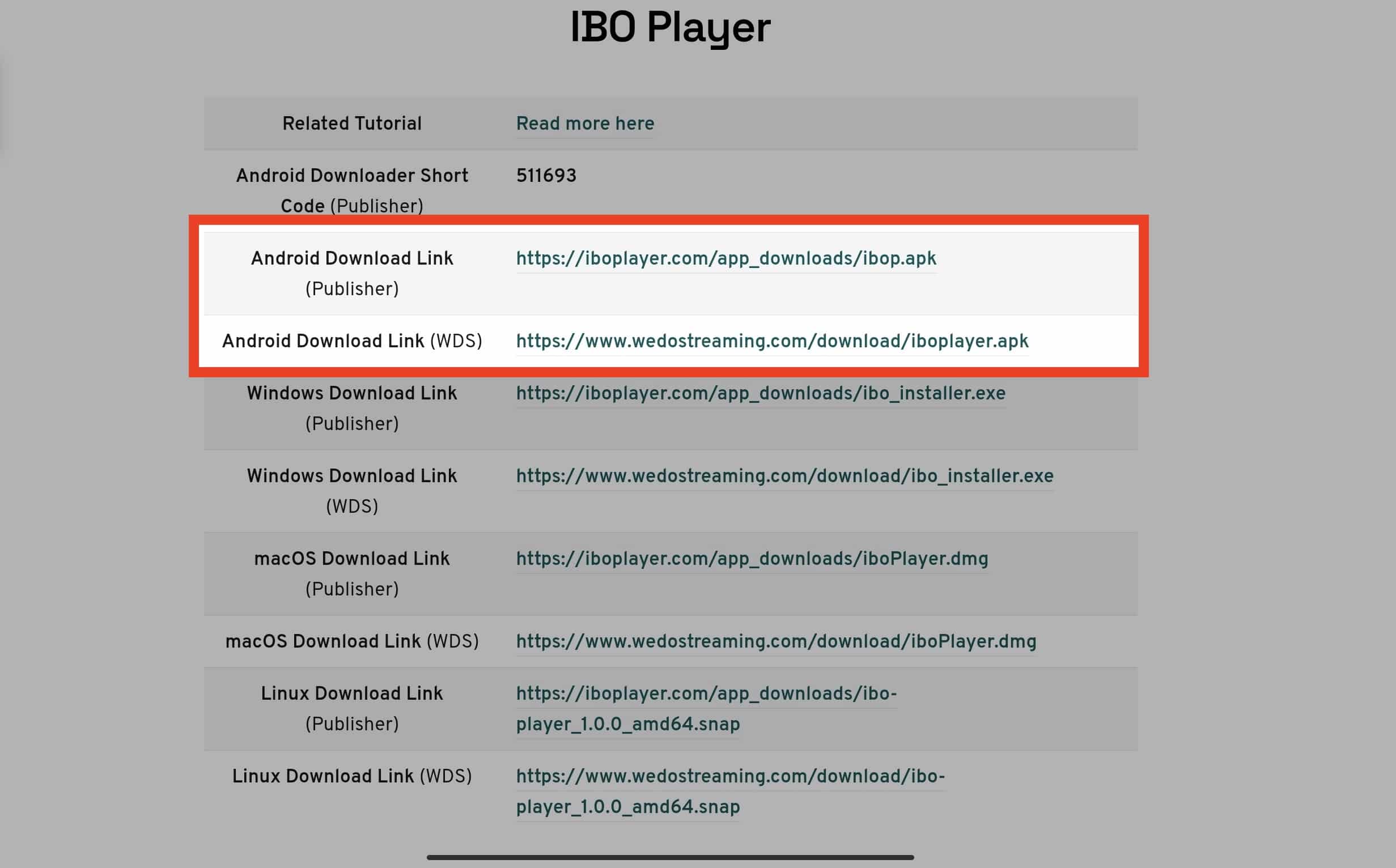
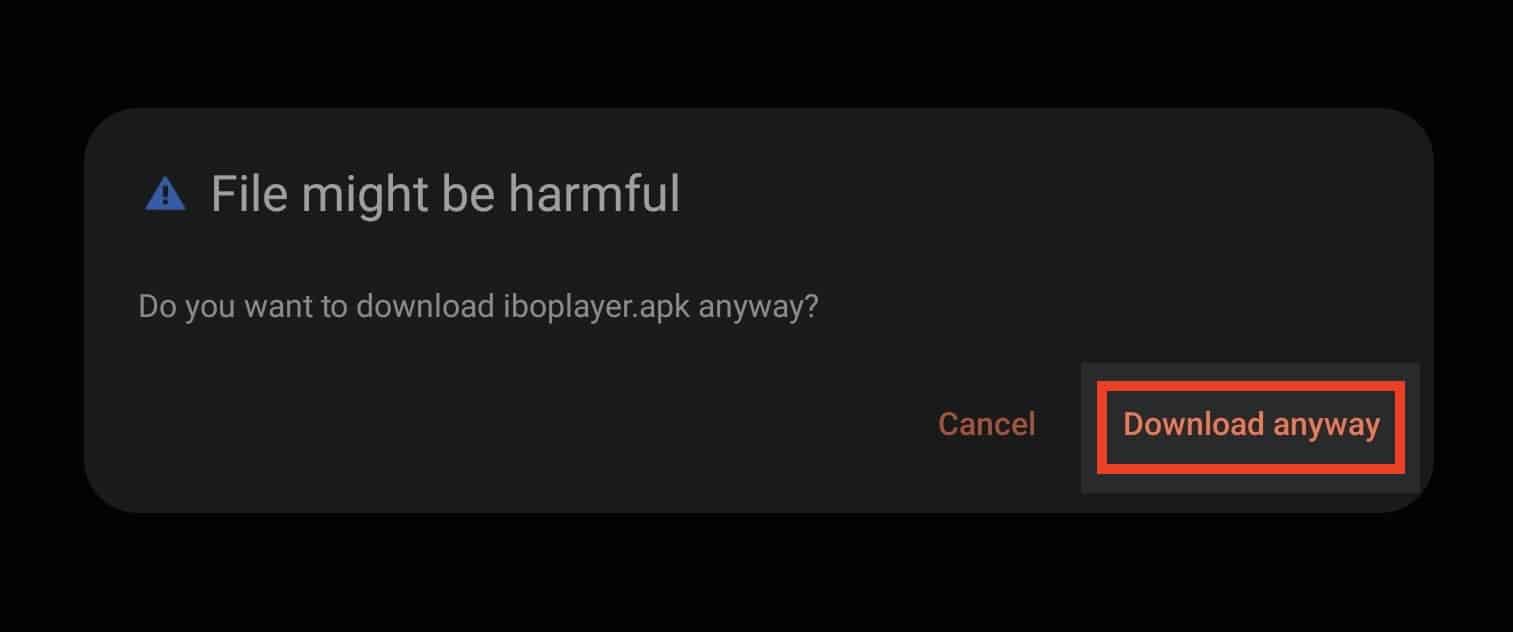
How to Install IBO Player on Android
- Open the Google Play Store on your Android phone or tablet.
- Search for "IBO Player" in the search bar.
- Tap Install and wait for the download to complete.
- Open IBO Player and note the Device ID and MAC Address displayed on the main screen.
- Send these details to ChannelCtrl support so we can activate your playlist.
- Once activated, restart the app and your channels will load automatically.
How to Install IBO Player on Amazon Fire TV Stick
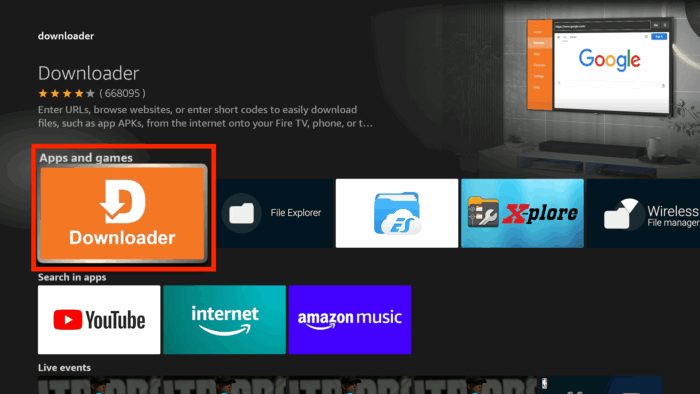
- From your Fire TV home screen, go to Search (magnifying glass icon).
- Type "IBO Player" and select it from the results.
- Click Download or Get to install the app.
- Open IBO Player after installation. The app will display your Device ID and MAC Address.
- Contact ChannelCtrl support with these details for playlist activation.
- After activation, relaunch the app to start streaming all 38,000+ channels.

How to Install IBO Player on Windows
- Visit the Microsoft Store on your Windows PC.
- Search for "IBO Player".
- Click Install to download the application.
- Launch IBO Player and note the Device ID and MAC Address.
- Share these with ChannelCtrl support for activation.
- Once your playlist is activated, restart the app and enjoy streaming on your PC.
How to Install IBO Player on macOS
- Open the App Store on your Mac.
- Search for "IBO Player".
- Click Get to install.
- Open the app and send the displayed Device ID and MAC Address to ChannelCtrl support.
- After activation, restart the app to load your channels and VOD content.
How to Install IBO Player on LG and Samsung Smart TV
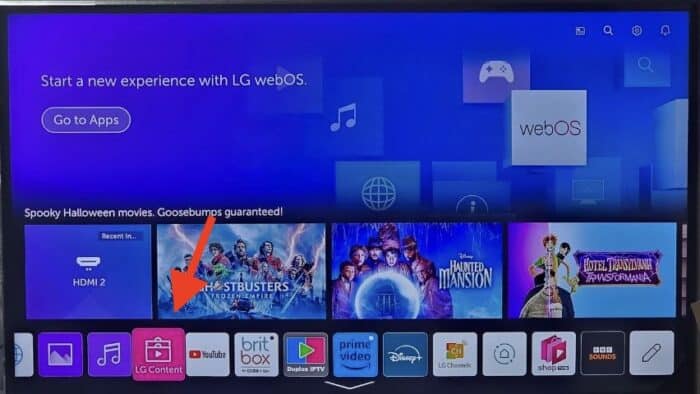
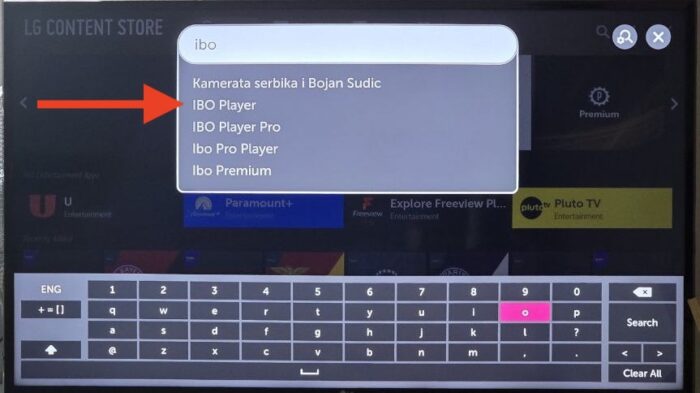
- On your LG Smart TV, open the LG Content Store. On Samsung Smart TV, open Samsung Apps.
- Search for "IBO Player".
- Install the app and open it.
- The app will display your Device ID and MAC Address.
- Contact ChannelCtrl support to activate your playlist using these details.
- Restart the app after activation to start watching on your big screen.
How to Add Your IPTV Playlist to IBO Player
After installing IBO Player, you need to add your ChannelCtrl playlist. There are two methods:
Method 1: M3U / Streaming Line
- Open IBO Player and go to Settings or the Add Playlist section.
- Select "Add M3U Playlist".
- Enter the M3U URL provided in your ChannelCtrl activation email.
- Give your playlist a name (e.g., "ChannelCtrl") and save.
- The app will load your channels. This may take a moment depending on your connection speed.
Method 2: Xtream Codes (XC) Playlist
- In IBO Player, go to Add Playlist and select "Add XC Playlist".
- Enter your Server URL, Username, and Password from your ChannelCtrl activation email.
- Save the playlist and the app will connect to the server.
- Your live channels, VOD movies, and series will populate automatically.
Navigating Live TV in IBO Player
Once your playlist is loaded, the Live TV section displays all available channels organized by category. You can browse through categories like US Entertainment, US Sports, News, Kids, International, and more. Use the built-in search function to quickly find specific channels.
To add a channel to your favorites, highlight the channel and press the designated favorite button on your remote. This makes it easy to access your most-watched channels without scrolling through the full list.
Movies and Series Section
IBO Player provides a dedicated section for on-demand content. Browse through 162,000+ titles organized by genre, year, and rating. The interface supports movie poster thumbnails and detailed descriptions to help you discover new content.
IBO Player Settings
The Settings section of IBO Player offers extensive customization:
- Network: Configure proxy settings and connection preferences.
- Parental Control: Set a PIN to restrict access to adult content.
- Live TV Player: Choose between the built-in player and external players.
- VOD Player: Configure the default player for movies and series.
- Manage Categories: Show or hide specific channel categories.
- Clear Cache: Free up storage by clearing cached data.
- Language: Change the app interface language.
Need Help?
If you encounter any issues during setup, our 24/7 support team is ready to help. Contact us via our contact page or reach out on WhatsApp at +1 (939) 800-3993. We will walk you through the entire process step by step.